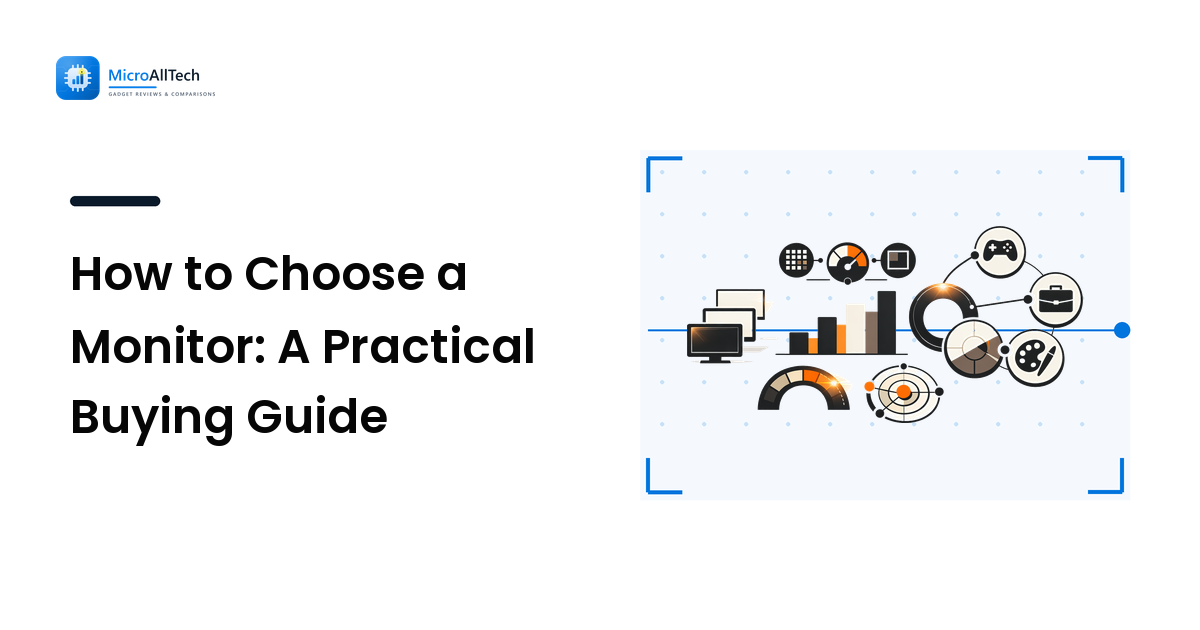
Monitor spec sheets are built to sound impressive, not to help you decide. Refresh rate, response time, resolution, panel type, HDR tiers, color gamut — it is a wall of numbers, and most of them only matter for some people. The trick to buying a good monitor is not chasing the biggest spec; it is matching a handful of specs to how you actually use the screen.
The short version: decide your main use case first, then pick size and resolution for that use, refresh rate for how much motion you deal with, and panel type for the trade-off you can live with. Get those four right and the rest is detail.
Start with the use case, not the spec sheet
A great gaming monitor and a great monitor for photo editing are different products, and a screen that is perfect for spreadsheets all day might be mediocre for both. Before comparing models, name your primary job for the screen:
- Fast gaming and motion — refresh rate and response time matter most.
- Work and reading — resolution, size, and eye comfort matter most.
- Creative and color work — color accuracy and panel type matter most.
- General mixed use — you want a balanced screen, not a specialist.
Pick the one that describes 80% of your time. Optimizing for the rare case is how people overspend on specs they never use.
Size and resolution go together
Size and resolution are a pair, not separate choices. What matters is pixel density — pixels packed into the space — because that controls how sharp text and images look at your viewing distance.
- 24-inch, 1080p — fine for a budget or secondary screen, but text looks soft up close.
- 27-inch, 1440p — the most common sweet spot for desktops: sharp, roomy, not too demanding.
- 27-to-32-inch, 4K — very sharp; great for detail work, but needs a stronger GPU for gaming.
- Ultrawide (34-inch+) — extra horizontal space for multitasking and immersive games; check that your desk and GPU can handle it.
The reason to care about density: a 32-inch 1080p panel spreads the same pixels over more space, so everything looks coarse. Bigger is not automatically better — match the resolution to the size so the image stays crisp.
Refresh rate and response time: only as much as you need
Refresh rate (in Hz) is how many times per second the screen updates; response time (in milliseconds) is how fast a pixel changes color. Together they decide how clean motion looks.
- 60 Hz is fine for office work, browsing, and video.
- 120-144 Hz is a clear, worthwhile upgrade for gaming and even general desktop smoothness.
- 240 Hz and up mainly benefits competitive fast-paced gaming, and only if your hardware can push those frame rates.
The reason to be careful here: a high refresh rate you cannot feed with frames is wasted money. Buy the refresh rate your graphics hardware and your games can actually use, not the biggest number on the box.
Panel type is a trade-off, so pick yours
Most monitors use one of three panel technologies, plus OLED at the premium end. None is best at everything — each trades something.
- IPS — best color accuracy and viewing angles; the safe default for work and creative use. Trade-off: contrast and black levels are only okay.
- VA — strong contrast and deep blacks, good for movies and dark rooms. Trade-off: motion can smear more.
- TN — fast and cheap, historically favored by competitive gamers. Trade-off: weaker color and narrow viewing angles.
- OLED — exceptional contrast, perfect blacks, and fast response. Trade-off: higher price and some risk of burn-in with static content.
The rule: pick the panel whose trade-off you will not notice. A color professional should not save money with TN; a movie-first buyer in a dark room will love VA.
Connections, stand, and the boring stuff that matters daily
Specs win the comparison, but ergonomics win the day-to-day. Check the things you will touch constantly:
- Ports — confirm it has the inputs your devices use (HDMI, DisplayPort, USB-C) and that the version supports your resolution and refresh rate.
- Stand — height and tilt adjustment is the cheapest upgrade to comfort; a fixed stand often sits too low.
- VESA mount — if you want an arm later, make sure the back supports it.
- Brightness and coating — a bright room needs a brighter, matte panel to avoid glare.
These rarely make the headline, but a perfectly spec'd monitor at the wrong height that glares all afternoon is the one you will resent.
A simple way to choose
- Name the use case — gaming, work, creative, or mixed.
- Match size and resolution — keep pixel density sharp (27-inch/1440p is a safe default).
- Set refresh rate to your hardware — 60 Hz for work, 120-144 Hz for gaming you can feed.
- Pick the panel trade-off you can live with — IPS for color, VA for contrast, OLED if budget allows.
- Check ports and stand — the daily-comfort details.
FAQ
What resolution should I get for a 27-inch monitor?
1440p is the sweet spot for 27 inches: it is noticeably sharper than 1080p without demanding as much graphics power as 4K. Go 4K only if you do detail work or have a GPU that can drive it.
Is a higher refresh rate always better?
No. It only helps if your hardware can produce enough frames and your tasks involve fast motion. For office work and video, 60 Hz is fine; the upgrade to 120-144 Hz mainly pays off in gaming.
Which panel type is best?
There is no single best — it is a trade-off. IPS for color and viewing angles, VA for contrast and dark-room movies, TN for cheap speed, and OLED for the best image if the budget and burn-in risk are acceptable.
Do I need HDR on a monitor?
Only if the monitor does HDR well. Many budget screens claim HDR but lack the brightness and local dimming to show it, so the feature adds little. Treat strong HDR as a bonus on higher-end displays, not a checkbox.
Is an ultrawide worth it?
For multitasking and immersive single-player gaming, yes — the extra horizontal space replaces a second monitor for many people. Just confirm your desk depth and graphics hardware can handle the wider resolution.
Next step
Before you compare a single model, write down your primary use case and the viewing distance at your desk. Then match size and resolution, set the refresh rate to what your hardware can actually deliver, and choose the panel trade-off you will not notice. A monitor chosen around how you use it beats a pricier one chosen around its spec sheet. When you are ready to shortlist models, compare 4K monitors on MicroAllTech — ranked picks with the reasons stated.