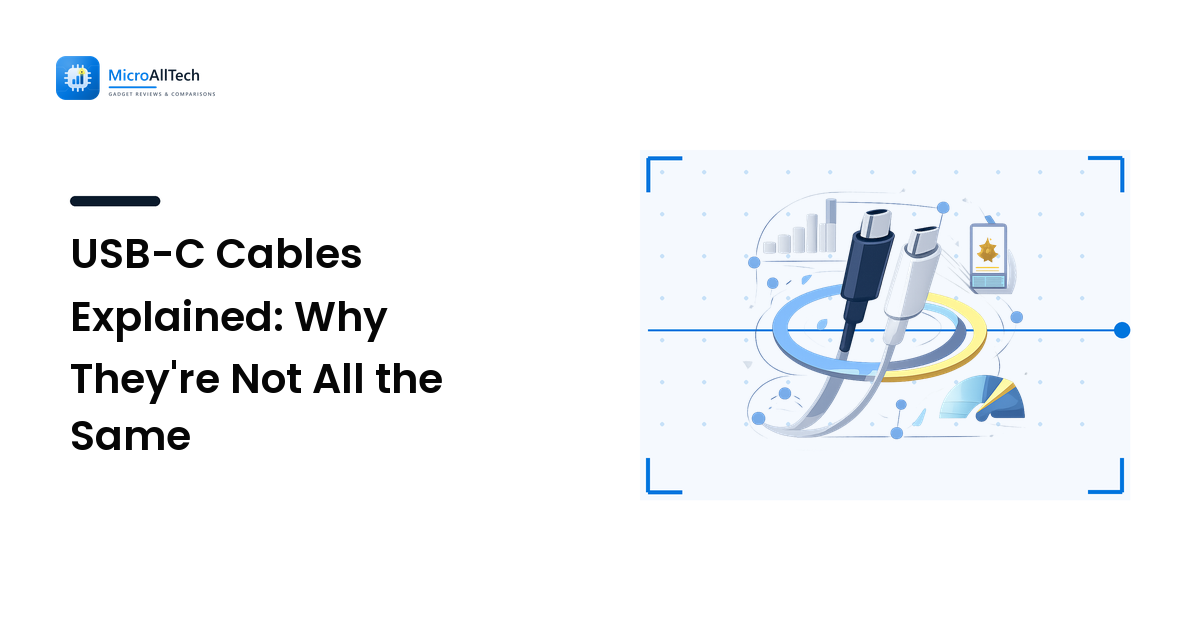
You buy a phone, a laptop, and a pair of earbuds, and every one of them charges through the same small, reversible oval plug. So it is easy to assume every USB-C cable is interchangeable. Then one day the cable that charges your laptop overnight suddenly takes forever, or the one you grabbed from a drawer refuses to move a video off your camera, and the illusion breaks. They look identical, but they are not.
Here is the takeaway up front: USB-C is only the shape of the connector, not a promise about what the cable can do. Two cables with the same plug can differ enormously in how much power they carry and how fast they move data — and there is no way to tell by looking. Once you understand the two things that actually vary, you can stop guessing, stop overpaying, and buy a cable that does the job you need.
USB-C is a connector, not a capability
The most useful thing to understand is that "USB-C" describes the physical port and plug — the oval, reversible shape you can insert either way up. It says nothing about the electronics inside the cable or the standard the two devices use to talk to each other.
That is a real change from the old days. A rectangular USB-A plug and a Micro-USB plug looked different, so you had a rough visual clue about what you were holding. USB-C unified the shape across phones, laptops, monitors, and accessories, which is genuinely convenient — but it also hid all the differences behind one identical plug. The connector became universal; the cables behind it did not.
So when a USB-C cable disappoints you, it is almost never "broken." It is usually built to a lower spec than the task demands. Two variables decide that: power and data.
Variable one: how much power it carries
Charging over USB-C ranges from trickle-slow to laptop-fast, and the cable is part of that chain.
- Basic USB-C cables carry a modest amount of power — enough for a phone or earbuds, but not for a hungry laptop at full speed. Under the USB specifications, a plain USB-C cable is rated to handle up to 3 amps (roughly 60 watts).
- USB Power Delivery (USB PD) cables are built to negotiate and carry more. To safely move higher current, a cable rated for up to 5 amps (up to 100 watts under older PD, and up to 240 watts under the newer Extended Power Range in USB PD 3.1) contains an "e-marker" chip that tells the devices what it can handle.
That e-marker is the key. Fast charging is a negotiation: your charger, your device, and the cable all agree on the safe maximum before power flows. If the cable cannot report that it is capable, the system falls back to a slower, safer rate. That is exactly why a random cable charges your laptop at a crawl — it is protecting you, not failing.
The practical upshot: for a laptop or any device that advertises high-wattage fast charging, you need a cable rated for that wattage, paired with a charger that supplies it. A cheap cable can quietly cap your charging speed even when the charger and laptop are both capable. If your device seems to charge slowly everywhere, though, the cable is only one suspect — our guide on why your phone battery drains so fast covers the settings and habits that matter more than the cable.
Variable two: how fast it moves data
The second hidden difference is data speed, and here the gap between cables is enormous.
Many USB-C cables — especially the ones bundled free with a charger — are charge-focused. They may only support USB 2.0 data, which tops out at 480 megabits per second. That is fine for syncing a phone or charging, but painfully slow for moving large video files or running an external SSD.
Cables built for real data throughput follow faster standards:
| Standard | Rated data speed | Typical use |
|---|---|---|
| USB 2.0 | 480 Mbps | Charging, phone sync, keyboards |
| USB 3.2 Gen 1 | 5 Gbps | External drives, general transfers |
| USB 3.2 Gen 2 | 10 Gbps | Fast SSDs, quicker backups |
| USB4 / Thunderbolt-class | 20–40 Gbps | High-end docks, displays, fast storage |
The numbers come straight from the USB-IF specifications, not from any one brand. The lesson is that a cable's data ceiling is fixed by how it is built: a USB 2.0 cable will never hit 10 Gbps no matter how fast your drive is, and it is completely invisible from the outside. This is the single most common reason an external SSD "feels slow" — the drive is fast, but the cable is a charge-only USB 2.0 strand.
Why you can't tell by looking
Neither power rating nor data speed is stamped where you can read it, and that is the frustrating heart of the problem. A 240-watt, 40 Gbps cable and a 60-watt, 480 Mbps cable can be the same length, the same colour, and have the same plug.
A few weak clues exist. Cables built for high data rates are often thicker and stiffer, because they carry more internal wires and shielding. Some makers print a small "SS" (SuperSpeed), a "USB4," or a wattage number near the plug. Thunderbolt cables usually carry a lightning-bolt icon. But these markings are inconsistent, and once a cable is out of its packaging the evidence is often gone. The honest answer is that you cannot reliably judge a bare USB-C cable by sight — which is why buying deliberately, and keeping cables labelled, saves real frustration.
How to choose the right USB-C cable
Match the cable to the harder of its two jobs — power and data — and you will not go wrong. Working out what you actually need before you buy is the same principle we apply across every category in our guide to how to choose tech without overpaying.
- Name the power you need. Check the wattage your device charges at. For a phone, a basic cable is usually fine. For a laptop or a high-wattage fast-charge phone, buy a cable explicitly rated for that wattage (60W is common; 100W or 240W for power-hungry laptops).
- Name the data you need. If the cable will only ever charge, data speed is irrelevant — save your money. If it will connect a drive, dock, or display, buy for the transfer speed you want (5, 10, 20, or 40 Gbps) and check that both devices support it too.
- Remember both ends and the middle must agree. A cable is only ever as fast as the slowest link. A 40 Gbps cable into a USB 2.0 port runs at USB 2.0. Fast charging needs a capable charger, a capable device, and a capable cable — all three.
- Buy for the job, not the spec sheet. A maxed-out Thunderbolt cable is wasted money if all you do is charge a phone. Conversely, a bargain cable is a false economy if it throttles your laptop or your SSD.
- Label your cables. A small sticker or coloured tie recording "100W" or "10Gbps" turns a mystery drawer into a system you can trust. It is the cheapest fix for the entire problem.
FAQ
Why does one USB-C cable charge my laptop faster than another?
Because they are built to different power ratings. High-wattage charging needs a cable that can safely carry more current, which for anything above 60 watts means a cable with an internal e-marker chip that reports its capability. A basic cable cannot report that, so the devices fall back to a slower, safer charging speed to protect your hardware.
Can any USB-C cable transfer data at high speed?
No. Many USB-C cables, especially free bundled ones, only support USB 2.0 data at 480 Mbps regardless of how fast your drive is. To move large files quickly you need a cable built to a faster standard — USB 3.2 (5 or 10 Gbps) or USB4 (up to 40 Gbps) — and both devices have to support that speed as well.
How can I tell what a USB-C cable is capable of?
Usually you cannot tell just by looking, which is the core frustration. Some cables print a wattage, an "SS" or "USB4" mark, or a Thunderbolt bolt near the plug, and high-speed cables tend to be thicker. The reliable approach is to note the specs when you buy and label the cable, rather than trying to judge a bare cable later.
Is a more expensive USB-C cable always better?
Not for your needs specifically. A premium 240W, 40 Gbps cable is genuinely more capable, but that capability is wasted money if the cable only ever charges a phone. The best cable is the cheapest one that comfortably meets the harder of your two requirements — the power your device draws and the data speed you actually use.
Will using the wrong cable damage my device?
Generally no. The USB Power Delivery system is designed so devices and cables negotiate a safe level before power flows, so an underpowered cable simply charges slowly rather than causing harm. The real risk comes from very cheap, uncertified cables that ignore the standard; sticking to properly certified cables keeps that negotiation, and your device, safe.
The bottom line
USB-C solved the annoyance of flipping a plug three times in the dark, but it created a quieter one: every cable looks the same while doing very different jobs. The two things that vary are power and data, and neither is visible on a bare cable. Decide how many watts your device needs to charge at and whether the cable will ever move real data, then buy the cheapest cable that clears both bars — and label it so you never have to guess again. For more vendor-neutral, no-hype help choosing and getting more from your tech, visit microalltech.com.