"Storage full" arrives at the worst possible moment, usually with a camera app that refuses to open. The instinct is to buy more cloud storage; the better move is to get the archive off the phone and onto something you control. Which raises the practical question nobody answers well: what is actually the best way to move a few thousand photos from a phone to a computer?
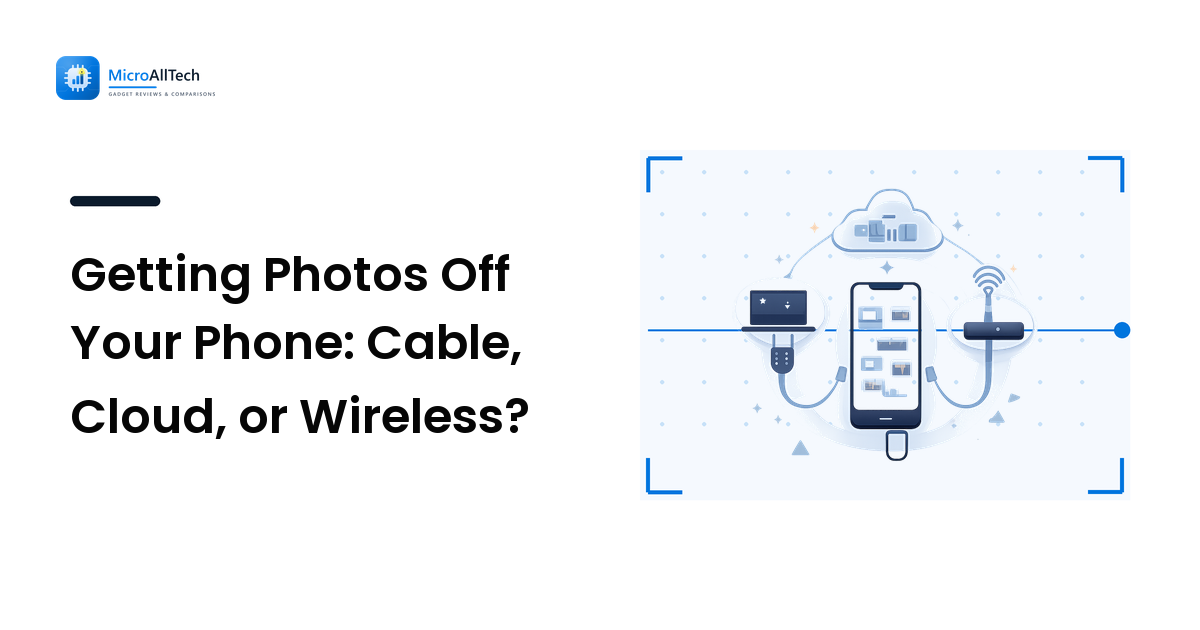
There are three routes, and the honest answer is that they solve different problems. Choosing by what you are trying to achieve — rather than by which one you tried first — saves a lot of frustration.
Cable: the right tool for a full archive
Plugging the phone into the computer and copying folders is the fastest way to move a large volume of photos, and the only route that doesn't depend on your internet connection, an account, or a subscription. For ten years of camera roll, nothing else comes close: you are moving files over a wire at wire speed.
It also preserves the originals exactly. That matters more than it sounds — some sync services re-encode or downscale images unless you are on a paid tier, and a "backup" that quietly shrinks your photos is not an archive.
The catch is setup. The cable route only works when three things are true: the cable carries data (many charging cables don't), the phone is unlocked and switched to file-transfer mode rather than charging, and Windows has the driver it needs to talk to that specific phone. That last one is where most people stall — the phone charges, nothing appears in File Explorer, and the obvious conclusion is that the cable route is broken. Usually it just needs the manufacturer's USB driver installed. For Samsung handsets, a package like the Samsung USB driver for Windows is the piece that makes the phone mount as a browsable device instead of showing up as an unknown one in Device Manager.
Once that's done it stays done, which is why the cable route is worth setting up properly even if you only use it twice a year.
What the setup actually involves is short: a cable with data lines, the phone unlocked and switched from charging to file transfer, and — on Windows — the USB driver package for that handset. Samsung phones are the common case here; their Windows driver lets the handset connect as a media device without any of the old desktop sync suites, and once it is installed the phone mounts on every later connection without repeating the process. If you have ever plugged a Samsung phone into a Windows machine and watched it charge while File Explorer stayed empty, that missing driver is almost always the reason.
Cloud sync: continuous safety, not an archive
Automatic photo sync solves a different problem: the phone that gets lost, stolen, or dropped in water before you ever thought about backups. It runs in the background, needs no cables, and is the only option that protects photos taken an hour ago.
What it is not is free storage or a permanent archive. Free tiers fill up fast at modern photo sizes, upload quality is often reduced unless you pay, and deleting a photo on the phone usually deletes it everywhere — sync mirrors your mistakes as faithfully as your intentions. Treat it as protection against losing the phone, and pair it with a periodic copy onto a computer or an external drive that sync cannot reach.
Wireless transfer: convenience for small batches
Local wireless transfer — a phone-to-PC app, a nearby-share feature, or a transfer over your own network — sits between the two. No cables, no cloud account, and no upload to a third party. It is genuinely the fastest way to get twenty photos onto a laptop right now.
For thousands of files it is a poor fit: throughput is far below USB, transfers stall when the screen sleeps, and resuming a partial batch is fiddly. Use it for the handful you need today, not for the archive.
A simple way to choose
- Moving your whole camera roll? Cable. Set up the driver once and copy the DCIM folder.
- Want photos protected the moment they're taken? Cloud sync, with the storage tier that doesn't downscale.
- Need a few photos on the laptop right now? Wireless transfer.
- Serious about not losing the archive? All three, in layers: sync for immediacy, a periodic cable copy for the archive, and one copy that lives somewhere else entirely.
That layered approach is the same logic behind planning for hardware to fail rather than hoping it won't — our guide to how long devices should last makes the case that the phone in your pocket has a shorter expected life than the photos on it.
Before you copy: two things worth checking
File formats. Newer phones save photos as HEIC and videos as HEVC by default. Both save space and both can land on a Windows machine that won't preview them without an extra codec. If you plan to browse the archive on a PC, either install the codecs or set the phone's camera to "most compatible" (JPEG) before the next batch.
Where things actually live. Camera photos are in DCIM/Camera; screenshots, downloads, and app-received images are scattered elsewhere. Copying only DCIM is the classic way to lose half of what you meant to save.
FAQ
Is a cable really faster than wireless for photos?
For anything beyond a small batch, yes — by a wide margin, and it doesn't stall when the phone's screen turns off. Wireless wins on convenience for a few files; USB wins on throughput and reliability for thousands.
Why doesn't my computer see my phone when I plug it in?
Most often the cable is charge-only, the phone is still in charging mode instead of file transfer, or Windows lacks the driver for that device. Check the phone's USB preferences first, then Device Manager — an error there means the manufacturer's USB driver is the fix.
Do I still need to copy photos if they sync to the cloud?
Sync protects against losing the phone; it does not protect against an accidental deletion propagating everywhere, an account problem, or a plan you stop paying for. A periodic copy onto storage you control is the layer that survives all three.
Should I delete photos from the phone after copying them?
Only after you have verified the copy opens on the computer — count the files, open a few from different years. "Copied" and "readable" are not the same thing, and the gap between them is where photo libraries disappear.
Next step
Decide which of the three problems you are actually solving, then set that route up properly rather than switching between all of them. If it's the archive, get the cable route working once: a data cable, file-transfer mode on the phone, and — when Windows won't see the device — the manufacturer's package, such as the Samsung USB driver for Windows, so the phone mounts as a drive you can simply copy from.