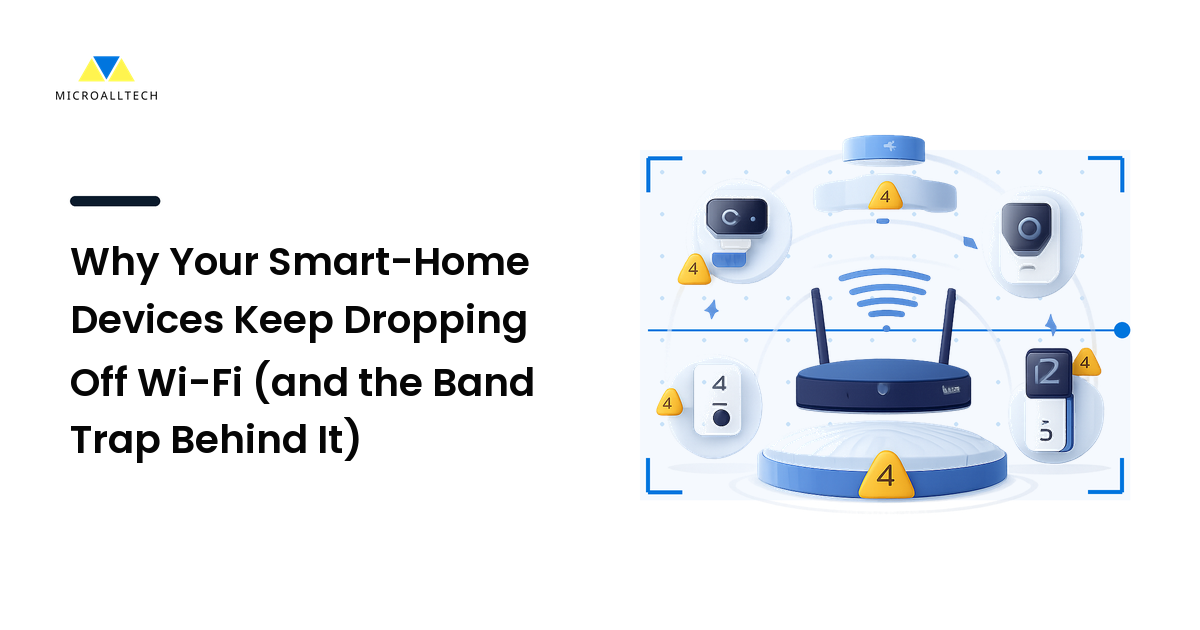
A smart plug pairs perfectly, works for a day, then shows "offline" forever. A camera in the garage drops every evening. You factory-reset, re-pair, maybe buy a replacement — and the new one does the same thing. Before you blame the device, know this: in the overwhelming majority of these cases the hardware is fine. The problem is how your phone, your router, and a cheap 2.4GHz radio negotiate which Wi-Fi band to use during setup. Get that wrong and the device connects to a band it cannot actually live on.
The key takeaway up front: most repeat disconnects come from the 2.4GHz band trap on a modern single-name ("band-steered") Wi-Fi network. Fix the band during setup, not the device, and the drops usually stop.
Why cheap smart devices only speak 2.4GHz
Almost every budget smart-home gadget — plugs, bulbs, sensors, many cameras and doorbells — uses a Wi-Fi chip that only works on the 2.4GHz band. Manufacturers choose it on purpose. 2.4GHz travels farther, passes through walls better, and the chips cost less. For a device that sends a few bytes to say "I'm on" or "motion detected," it is the sensible engineering choice.
Your phone, meanwhile, almost always prefers 5GHz because it is faster. And most routers from the last several years ship with band steering turned on: 2.4GHz and 5GHz share one network name (SSID), and the router decides which band each client lands on. That convenience is exactly what breaks smart-home setup.
The band trap, step by step
Here is the failure that catches everyone, and why it looks like a broken device:
- You open the device's app to add a new plug. Many apps pair by handing your Wi-Fi name and password to the device over a temporary connection.
- Your phone is sitting on the 5GHz side of your single, merged network.
- The app passes along the network — but the 2.4GHz-only plug cannot join 5GHz. On a merged SSID it often still completes pairing because both bands share a name, so the app reports success.
- The plug works briefly while it clings to a weak 2.4GHz signal, then the router's band steering nudges traffic around, the device loses its foothold, and it goes "offline." Re-pairing repeats the whole cycle.
The reason people misdiagnose this is that the device does connect at first. Setup says "success," it responds for minutes or hours, and only later drops. That delay hides the cause. A truly faulty device usually fails to pair at all; a band-trapped one pairs, then dies — that pattern is your biggest diagnostic clue.
The fix: separate the bands during setup
The reliable cure is to make sure both your phone and the device are on 2.4GHz while pairing. You have three practical options, from least to most disruptive.
Option A — temporarily split your SSID. In your router app, give the 2.4GHz band its own name (for example, add "-2G" to it) and turn off band steering. Connect your phone to the 2.4GHz network, pair the device, then leave the bands split. This is the most durable fix and what I recommend for anyone with more than a couple of smart devices.
Option B — force your phone onto 2.4GHz temporarily. If you cannot rename the bands, some routers let you disable the 5GHz radio for a few minutes during setup. With only 2.4GHz live, your phone has no choice, pairing happens on the right band, and you re-enable 5GHz afterward.
Option C — move closer, then place farther. Pair the device in the same room as the router (strong 2.4GHz signal), confirm it is stable, then move it to its final spot. If it drops after moving, the issue is range, not bands — covered below.
A concrete worked example
A reader had four smart plugs and a Wi-Fi camera on a mesh system with one merged SSID. Three plugs worked; one plug and the camera went offline every night. Replacements behaved identically — the giveaway that hardware was not the problem.
The diagnosis took ten minutes. In the router app, the 2.4GHz and 5GHz bands shared the name "HomeNet." We renamed 2.4GHz to "HomeNet-2G" and disabled band steering. Connecting the phone to "HomeNet-2G," we re-paired the failing plug and the camera. The plug — which sat 4 meters from a node — stayed online from then on. The camera, in a detached garage, still dropped: a clean signal-strength problem, not a band problem.
For the camera we added a cheap 2.4GHz range extender on the garage-facing wall, broadcasting "HomeNet-2G." Result: five devices, zero overnight drops, no new hardware purchased except a $20 extender. The "broken" plug we had nearly thrown out is still running today. Picking gear with this in mind is part of choosing well in the first place — see our practical buying guide for how to weigh connectivity before you buy.
Common mistakes and why people make them
- Factory-resetting on repeat. Resetting re-runs the exact same flawed pairing on the wrong band, so it "works" then fails again. People assume persistence will fix it; it cannot, because the cause is the network, not the device's memory.
- Blaming the device and buying a replacement. Same chip, same 2.4GHz limitation, same merged SSID — identical result. The replacement "proves" the brand is bad when nothing was ever wrong with it.
- Confusing range problems with band problems. Both show as "offline," but they need different fixes. If a device is stable near the router and drops far away, it is range. If it drops even close to the router, it is the band trap or interference.
- Leaving 2.4GHz on a crowded channel. In apartments, 2.4GHz is congested. Setting the band to a fixed clear channel (1, 6, or 11) instead of "auto" often stabilizes borderline devices.
Edge cases and caveats
- Some routers hide band steering. Carrier-supplied gateways may not expose an SSID split. If yours does not, Option B (briefly disabling 5GHz) or the manufacturer's own app workaround is your path; a few brands let the device's app force 2.4GHz pairing.
- Mesh systems complicate placement. A device may connect to a distant node instead of the nearest one. Pairing close to a specific node, or naming the 2.4GHz band so you control the join, helps.
- 2.4GHz interference is real. Microwaves, baby monitors, and Bluetooth crowd the band. A device that drops only at certain times of day is often fighting interference, not the router.
- Newer Matter-over-Thread or Wi-Fi 6E gear behaves differently. This trap is specific to 2.4GHz-only Wi-Fi devices on merged SSIDs. Thread and 6E devices solve it in other ways, but the vast installed base of cheap plugs and bulbs is exactly where this bites.
FAQ
How do I know if it is the band trap and not a broken device?
Watch the pattern. A band-trapped device pairs successfully and works for minutes or hours, then goes offline and stays there. A genuinely faulty device usually fails to pair at all or behaves erratically from the first second. "Pairs fine, dies later" points to the band, not the hardware.
Why does my smart plug connect but then go offline?
It almost certainly joined via a merged 2.4/5GHz network and cannot maintain a stable 2.4GHz link once band steering rebalances traffic. Splitting the 2.4GHz band into its own SSID and pairing on it directly is the durable fix.
Is it bad to permanently split my Wi-Fi into two names?
No. Many smart-home owners run a separate, permanently named 2.4GHz network specifically for their plugs, bulbs, and sensors. It removes ambiguity for low-power devices and your phone and laptop still use the faster 5GHz network for everything else.
Will a Wi-Fi extender fix disconnecting devices?
Only if the cause is range, not the band. An extender helps a device that is stable near the router but drops far away. It will not help a device that drops even when close — that one needs the band fix first.
Should I just buy more expensive smart devices?
Price is not the issue here; the 2.4GHz-only chip is common across cheap and mid-range gear by design. Fixing your network is far more effective than spending more, and it makes every future device easier to add.
Next step
Before you factory-reset another plug or order a replacement, open your router app and check one thing: do your 2.4GHz and 5GHz bands share a single network name? If they do, give 2.4GHz its own SSID, turn off band steering, and re-pair your stubborn devices on that band. That one change quietly fixes most smart-home disconnects — and it costs nothing. Keep building your setup the same way at microalltech.com.