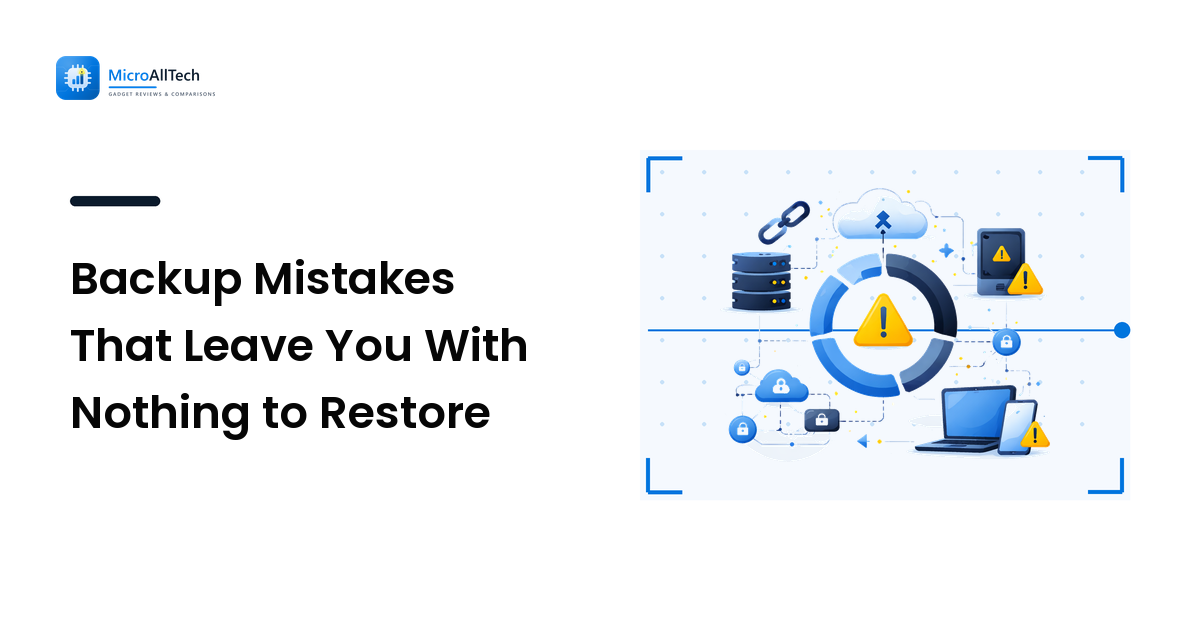
Most people who believe they are backed up have exactly one copy of their files that happens to appear in two places at once. That is sync, not backup, and the difference stays invisible until the day something is deleted, corrupted, or encrypted — because sync copies the damage everywhere just as faithfully as it copied the file.
The short version: a real backup is a copy your computer cannot reach and change on its own, and one you have actually restored from at least once. Everything below is a specific way that definition quietly stops being true. Each mistake is tempting for a reason, each has a check that takes a couple of minutes, and none of them announce themselves until you need the backup.
Is cloud sync the same as a backup?
No, and this is the one that catches almost everyone. A sync folder mirrors the current state of your files. If a file is deleted, damaged by a failing drive, or encrypted by malware, the mirror is updated to match — that is the entire job it was designed to do.
Why it is tempting: it genuinely feels like a backup. The files are "in the cloud", they survive a lost laptop, and they reappear on a new machine. Against device loss and theft, sync really does save you.
The cheap check: delete a test file from the synced folder on your computer, then open the service in a web browser and see how far back you can go. Look for two things — a trash or recycle bin with a stated retention period, and version history on individual files.
The fix: find out which of the two you have. If the service keeps versions for a meaningful window, it does much of a backup's job, and you should locate the restore screen now rather than in a crisis. If it only mirrors, add a separate copy that nothing on the computer can write to.
Why one external drive is not a backup plan
A single external drive is a real improvement on nothing. It is also a single point of failure sitting on the same desk as the thing it is protecting.
Why it is tempting: it is cheap, it is one purchase, and it visibly holds a copy of everything.
The cheap check: ask where that drive was during the last event that could have destroyed your laptop. If the honest answer is "plugged into it" or "in the same bag", then a theft, a spilled drink, a surge, or a burst pipe takes both copies at once.
The fix: the widely used rule of thumb is three copies of anything that matters, on two different kinds of storage, with one of them somewhere else. "Somewhere else" need not be dramatic — a second drive at a relative's house that you swap every few months counts, and so does a cloud copy alongside the local one. The point is that no single event can reach both.
There is a second reason not to leave the drive permanently attached. Anything that can write to your files can write to a drive that is always mounted, which is exactly how a ransomware infection takes the backup with it. A drive you unplug is a drive that cannot be rewritten.
What are you not backing up?
Backups tend to cover the folders people think of as "files". The things that take longest to rebuild are usually somewhere else.
The commonly missed ones:
- Photos and messages that still exist only on the phone — especially anything received, downloaded, or recorded rather than shot in the camera app. The routes off the device, and their trade-offs, are in getting photos off your phone.
- Email that lives only in a provider's web account. An account lockout is a data-loss event, not merely an access problem.
- Two-factor authenticator codes. Lose the phone with no recovery codes saved and you can be locked out of the very account holding the backup.
- Licence keys, saved logins, and browser bookmarks.
- Anything on a second internal drive, a memory card, or a network drive that the backup software was never pointed at.
- Files kept inside an app rather than in a normal folder — notes apps, design tools, game saves.
The cheap check: open your backup destination and search it for one specific item from each of those categories. Not the folder — the actual file.
The fix: write the list of what matters first, then configure the backup to match it. Most people work in the opposite order and end up with an excellent copy of Documents and nothing else.
Have you ever restored anything from it?
An untested backup is a hypothesis. Backup jobs fail silently for dull reasons: a destination that filled up, a drive that stopped being recognised, a scheduled task that has not run since an update, a folder that was renamed and quietly dropped out of scope.
Why it is tempting to skip: the software reports success, and testing feels like work with no visible reward.
The cheap check: restore one file. Pick something a few months old, put it somewhere new, and open it. If you cannot find the restore screen at all, that is the finding.
The fix: set a repeating calendar reminder — quarterly is plenty — that asks for one restored file and a glance at the date of the last successful backup. That date is the number that matters, and it is the one nobody looks at.
Can you actually get into your backup?
Encrypting a backup is the right default and the source of a particular kind of heartbreak: the copy survives and the password does not.
This bites hardest with encrypted phone backups, encrypted drives, and password managers whose vault is backed up while the master password lives only in someone's memory — and again when the backup sits inside an account you can no longer sign into, because the second factor was on the device that died.
The cheap check: write down, on paper, how you would reach your backup if your main phone and your laptop both stopped working this afternoon. If any step depends on one of those two devices, the chain is broken.
The fix: keep recovery codes and the handful of critical passwords somewhere physical and safe, and keep at least one recovery method that does not route through your primary phone. This is far easier to arrange at the beginning — setting up a new phone is the natural moment.
Why phone backups stop without telling you
Phone backups are the most likely to be broken right now, because they depend on conditions that quietly change. The usual causes: the free storage tier filled up months ago; the backup only runs while charging on Wi-Fi and the phone now charges somewhere else; or a storage-saving setting keeps full-resolution originals in the cloud and lightweight copies on the device, which is fine until the account is the thing you lose.
The cheap check: open the backup screen in your phone's settings and read the date of the last successful backup. It is one tap, and on a surprising number of phones that date is old.
The fix: deal with the cause the screen names — clear space, move up a storage tier, or change the conditions. Then look at the date again in a week to confirm it moved.
The check worth doing this week
None of this needs a weekend:
- Read the last-backup date on your phone and on your computer. An old date is the whole finding.
- Restore one file from every backup you rely on.
- Search the backup for a photo, an email, and a licence key — the items, not the folders.
- Confirm one copy is somewhere else, physically or in a separate account.
- Unplug the drive when the job finishes.
- Write the recovery path on paper, codes included.
Hardware failure is no longer the main risk — accidental deletion, account lockout, theft, and malware are, and those are precisely the failures that sync mirrors rather than prevents. Ageing hardware still deserves a plan of its own, and how long devices actually last is a sensible place to start.
FAQ
Is a cloud drive enough on its own?
It can be, if it keeps file versions and a recoverable trash for long enough that you would notice a problem first. Check the retention period in the service's settings. If it only mirrors the current state, treat it as protection against a lost device, not against deletion or corruption.
How often should backups run?
Ask how much work you are willing to redo. If losing a day would be an annoyance, daily is fine; if it would be a disaster, you want something closer to continuous. The schedule matters far less than whether it runs at all.
Do I still need a local backup if everything is in the cloud?
A local copy restores faster, works without an internet connection, and survives an account problem. Lockouts and lapsed billing are real ways to lose access to files that are technically perfectly safe.
Is a second copy on the same drive useful at all?
Only against accidental deletion. When the drive itself fails, both copies go with it, and drives tend to fail all at once rather than gradually.
What should I do first if a backup has clearly failed?
Stop writing to the affected device. Continuing to use a drive with deleted or missing files reduces what any later recovery attempt can find.
Backups do not fail loudly. They fail as an old date on a settings screen, a folder that fell out of scope, or a password nobody wrote down — discovered at the worst possible moment. Restore one file this week and you will know which of these applies to you. For more on maintaining the gear you already own, read the guides at MicroAllTech.