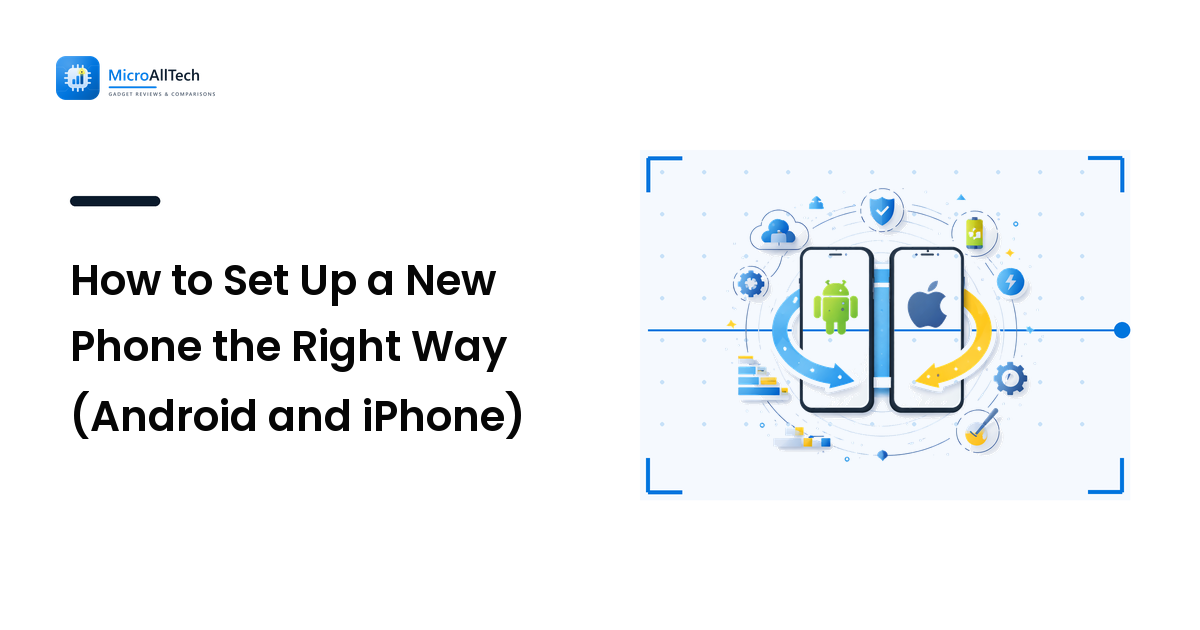
Unboxing a new phone is exciting, and the temptation is to tap "Next, Next, Next" through the setup screens as fast as possible and start using it. Resist that for fifteen minutes. The choices you make in the first setup — how you move your data, how you secure the device, and which settings you tune — shape how clean, safe, and long-lasting the phone feels for the next two or three years. Rushing it is how people end up with a cluttered, battery-hungry phone within a month.
This guide walks through setting up a new Android or iPhone the right way, in the order that matters, so you start with a device that works for you.
Before you start: charge and update
Give the phone a decent charge before you dig in — setup, data transfer, and the first big software update all draw power. While it charges, make sure your old phone is fully backed up so nothing gets left behind in the move.
The very first thing to do after the basic setup is check for a system update. New phones often sit in a warehouse for months, so there's usually a sizeable update waiting with the latest security patches and bug fixes. Installing it first means every later step happens on the current software.
Step 1: Transfer your data the clean way
Both platforms have made this genuinely easy, and using the official tools gives the most complete result.
- iPhone to iPhone: Bring the two phones close together and use Quick Start. It copies your apps, settings, photos, and accounts across, or restores from an iCloud backup.
- Android to Android: During setup, choose to copy data from your old device with a cable or wirelessly. Samsung owners can also use Smart Switch, which is thorough and even pulls across some settings and layouts.
- Switching platforms? Apple's Move to iOS app handles Android-to-iPhone, and Google's tools plus your Google account cover iPhone-to-Android for contacts, calendar, and photos.
One tip that saves regret: a new phone is a great moment for a fresh start. Rather than blindly cloning everything, consider letting the essentials transfer and reinstalling apps you actually use as you go. You'll skip carrying over years of junk.
Step 2: Secure it from day one
Set up security now, before the phone holds your messages, photos, and payment details — not "later," which often means never.
- Set a strong screen lock. Use a six-digit PIN at minimum, or better, an alphanumeric passcode. Avoid birthdays and repeating digits.
- Enable biometrics. Fingerprint or face unlock makes a strong passcode painless to live with, so you're not tempted to pick a weak one.
- Turn on Find My iPhone / Find My Device. This lets you locate, lock, or wipe the phone if it's lost or stolen — do it during setup, not after you need it.
- Confirm your account is protected. Your Apple Account or Google Account is the master key to the whole phone, so make sure two-factor authentication is switched on for it.
Step 3: Clear out the bloatware
New phones, Android models especially, often arrive with pre-installed apps you never asked for — trial games, duplicate browsers, promotional apps. This "bloatware" clutters your app drawer and can run in the background.
Go through the app list and uninstall what you don't want; anything that can't be removed can usually be disabled so it stops running and hides from view. A clean start here keeps the phone feeling faster and your home screen focused on what you actually use.
Step 4: Tune the settings that matter
A handful of settings, adjusted once, noticeably improve daily life with the phone:
- Display: Set the auto-lock/screen timeout to something sensible, and enable dark mode if you prefer it. If your phone has a high refresh-rate screen, decide whether the smoothness is worth the slightly higher battery use.
- Notifications: Don't let every app buzz you by default. As apps ask for permission, allow notifications only for the ones you genuinely need. Fewer interruptions and less battery drain.
- Privacy permissions: Review which apps get location, camera, microphone, and contacts. Set location-hungry apps to "While Using" rather than "Always."
- Backups: Turn on automatic cloud backup (iCloud or Google One) now so your new phone stays protected going forward.
Step 5: Set yourself up for good battery life
How you configure a phone at the start has a real effect on how long it lasts between charges. Turn on the built-in battery optimization or adaptive battery feature, keep an eye on which apps you grant background activity, and don't leave a dozen apps refreshing constantly. If you want the full picture of what quietly drains a modern phone, our guide on why your phone battery drains fast breaks down the biggest culprits and the fixes.
Getting the most from your specific model
The steps above apply to almost any phone, but every model has its own extras worth learning — a Samsung's Edge panels and One UI gestures, an iPhone's Focus modes and widgets, a Pixel's camera tricks. This is where a model-specific walkthrough pays off, because a generic guide can't show you the exact menu on your device. A tech how-to site like https://www.cloudorian.net/ publishes step-by-step guides for Android, Samsung, iPhone, and Windows, which is handy when you want to unlock a feature or fix a quirk unique to the phone in your hand.
FAQ
What's the first thing I should do with a new phone?
Charge it, make sure your old phone is backed up, then run the initial setup and install any pending system update before anything else. Doing the update first means every later step happens on current, secure software.
Should I transfer everything from my old phone or start fresh?
Transfer the essentials — contacts, photos, messages, and accounts — but consider reinstalling apps as you need them rather than cloning years of clutter. A new phone is the perfect moment for a clean slate.
How do I move data between an Android phone and an iPhone?
Use the official cross-platform tools: Apple's Move to iOS app for Android-to-iPhone, and your Google account plus Google's transfer tools for iPhone-to-Android. They handle contacts, calendars, and photos reliably.
Do I really need to remove pre-installed apps?
It's worth it. Bloatware clutters your app drawer and some of it runs in the background. Uninstall what you can and disable the rest to keep the phone clean and responsive.
Why is setting up security during setup so important?
Because the phone quickly fills with personal data. Setting a strong lock, enabling biometrics, and turning on Find My device before you need them means you're protected from day one if the phone is ever lost or stolen.
The bottom line
A great phone experience starts with a careful setup. Charge and update first, transfer your data cleanly, lock the device down, clear out the bloatware, and tune the settings that shape battery life and daily comfort. Fifteen extra minutes on day one buys you a phone that's cleaner, safer, and lasts longer between charges — and once the basics are done, it's worth learning the handful of features unique to your exact model.